 How To
 How to Clear DNS Cache in Google Chrome
Introduction: Why Websites Don’t Load Even When Your Internet Is Working
You’re connected to the internet, everything seems fine yet a website refuses to load, shows outdated content, or redirects you to the wrong page.
Frustrating, right?
In most cases, this issue is not caused by your internet connection or even the website itself. The real culprit is often cached DNS data stored inside your browser, particularly in chrome net internals dns.
Google Chrome uses DNS caching to make browsing faster. But when website configurations change like hosting migrations, server updates, or CDN changes this cached data can become outdated. As a result, your browser keeps trying to connect to the wrong server.
This leads to common errors such as:
- DNS_PROBE_FINISHED_NXDOMAIN
- ERR_NAME_NOT_RESOLVED
- ERR_CONNECTION_TIMED_OUT
- Incorrect website redirects
The good news?
You can fix this in seconds using chrome net internals tools, specifically through net internals dns settings.
In this guide, you’ll not only learn how to fix the issue, but also understand the technical reason behind it, so you can troubleshoot like a pro.
Understanding DNS: The Backbone of Internet Browsing
Before jumping into solutions, let’s simplify what DNS actually does.
DNS (Domain Name System) acts like the internet’s phonebook. It translates human-friendly domain names into machine-readable IP addresses.
Example:
When you type:
www.example.com
DNS converts it into something like:
192.168.1.1
Without DNS, you would have to remember IP addresses for every website you visit.
How DNS Resolution Works (Step-by-Step)
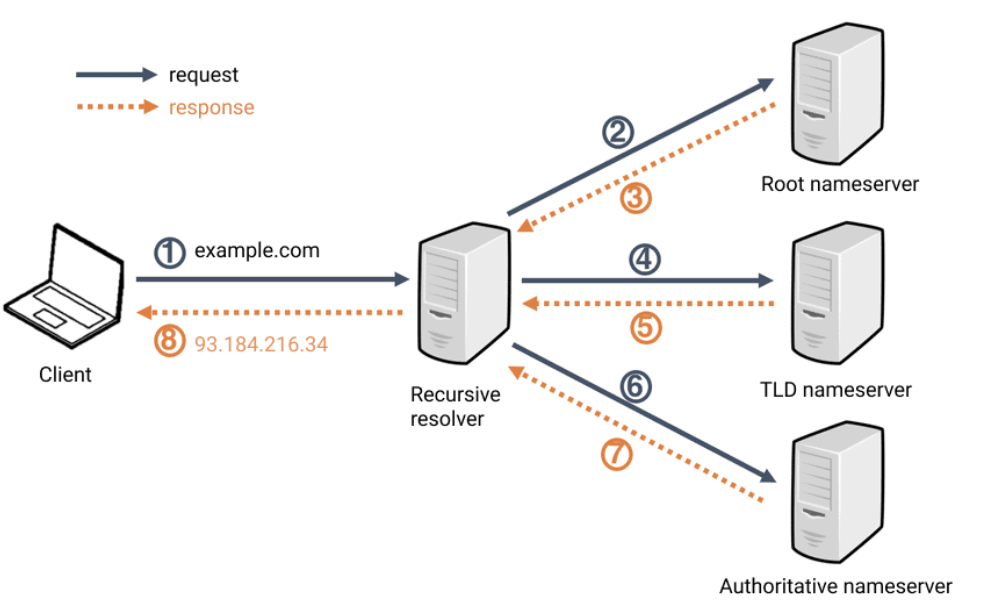
Whenever you open a website, a structured process happens in milliseconds:
- Your browser checks its internal DNS cache (chrome net internals dns)
- If not found, your operating system checks its cache
- A request is sent to a DNS resolver
- The resolver queries the authoritative DNS server
- The correct IP address is returned
- The website loads in your browser
This entire process is optimized for speed but caching plays a critical role here.
What is DNS Cache in Chrome?
DNS cache is a temporary storage system used by Chrome to save domain-to-IP mappings.
You can view and manage this using:
chrome net internals
More specifically:
chrome net internals dns
Why Chrome Uses DNS Cache
- Faster website loading
- Reduced DNS lookup time
- Improved browsing performance
- Lower latency for frequently visited sites
But Here’s the Catch
DNS cache is not always accurate.
If the stored data becomes outdated or corrupted, your browser starts making incorrect requests—leading to website errors.
Why DNS Cache Causes Website Issues
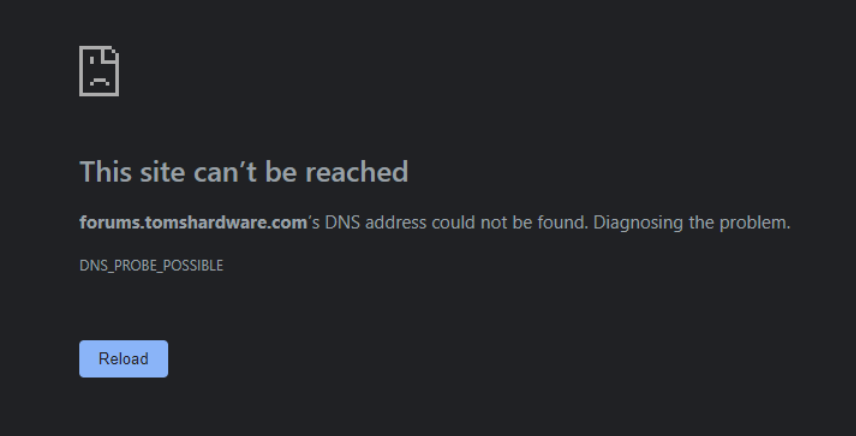
DNS issues are extremely common, especially in modern cloud and distributed environments.
Here’s when problems usually occur:
1. DNS Records Are Updated
When a website changes its IP address, your browser may still use the old cached version from chrome net internals dns.
2. Hosting Migration
If a website moves to a new server, your browser might continue pointing to the old one.
3. CDN or Infrastructure Changes
Content Delivery Networks introduce multiple DNS layers, which can cause inconsistencies in cached data.
4. Corrupted DNS Cache
Temporary glitches or incomplete DNS responses can corrupt cache entries inside net internals dns.
Common DNS Errors You May Encounter
When DNS caching fails, you’ll typically see:
- DNS_PROBE_FINISHED_NXDOMAIN
- ERR_NAME_NOT_RESOLVED
- ERR_CONNECTION_TIMED_OUT
- Websites not loading at all
- Incorrect redirects to old versions
These errors are not just frustrating—they can directly impact productivity, especially for businesses relying on cloud platforms.
Why This Matters for Cloud-Based Applications
DNS issues don’t just affect websites they can disrupt access to critical services like:
- Cloud storage platforms
- SaaS tools
- Enterprise applications
- Remote servers
Imagine trying to access important business data, but your browser is stuck resolving an outdated IP.
That’s why modern businesses rely on high-availability, secure cloud storage solutions that minimize downtime and ensure consistent DNS resolution.
Step-by-Step Guide to Clear DNS Cache in Chrome
Step 1: Open Chrome DNS Internal Page
In your Chrome browser, type:
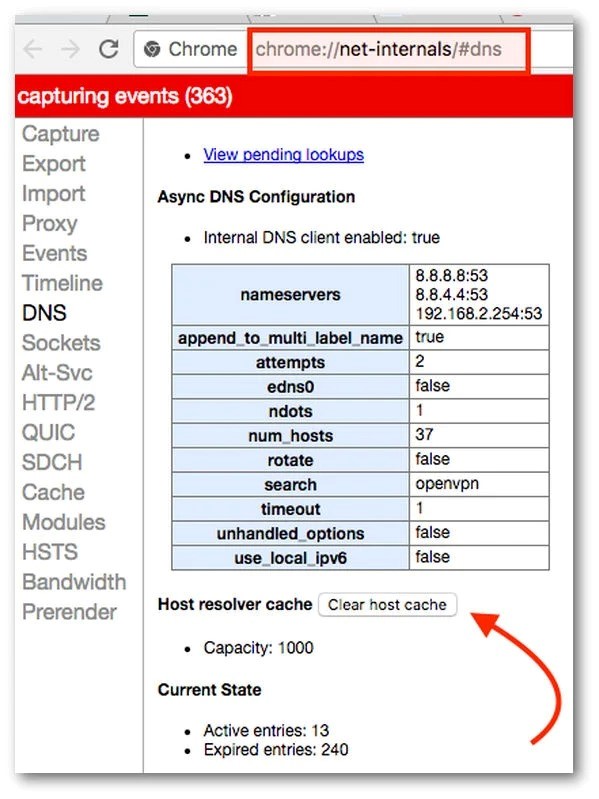
What You Will See:
- DNS cache entries
- Domain-to-IP mappings
- “Clear host cache” option
Step 2: Clear Host Cache
Click on “Clear host cache.”
What Happens Internally:
- Chrome deletes all stored DNS entries
- Forces fresh DNS resolution
- Eliminates outdated records
Step 3: Verify Cache Clearance
- DNS entries list becomes empty or resets
- New requests will use updated DNS data
Advanced Step: Flush Socket Pools
DNS cache clearing alone may not fully resolve the issue.
Step 4: Open Socket Interface
chrome://net-internals/#sockets
Step 5: Click “Flush Socket Pools.”
Why This Step Matters:
- Clears active connections
- Removes sessions using old DNS
- Ensures updated DNS is applied
Step 6: Restart Chrome
Restarting ensures:
- Complete network reset
- No residual cache remains
Strengthen DNS Reliability with a VPS Server
If you frequently face DNS issues—even after using chrome net internals dns—the root cause may lie in your hosting environment.
A reliable VPS server provides:
- Dedicated resources for faster request processing
- Stable network configuration
- Better DNS response time
- Reduced dependency on shared environments
Unlike shared hosting, a VPS ensures that your DNS queries are handled efficiently, minimizing errors like ERR_NAME_NOT_RESOLVED.
Ensure Email Stability with Business Mail & Hybrid Mail
DNS doesn’t just impact websites—it directly affects your email delivery.
Using a professional business mail solution ensures:
- Proper MX record configuration
- Reliable email delivery
- Reduced risk of DNS-related email failures
For growing organizations, a hybrid mail setup adds another layer of reliability by combining cloud flexibility with on-premise control. This helps maintain uninterrupted communication even during DNS inconsistencies.
Data Center Infrastructure: The Backbone of DNS Stability
At a deeper level, DNS performance depends heavily on your data center UAE infrastructure.
A well-optimized data center offers:
- Redundant DNS systems
- High availability architecture
- Faster global response times
- Stable connectivity across regions
This becomes especially critical in modern environments involving cloud, CDN, and edge computing—where even small DNS issues can impact performance at scale.
Testing After Clearing DNS Cache in Chrome
Once you’ve cleared the DNS cache using chrome net internals dns, it’s important to verify whether the issue has actually been resolved.
Many users skip this step—but from a technical standpoint, validation is critical.
Follow These Quick Checks:
After clearing cache via chrome net internals, do the following:
- Reload the affected website (use hard refresh: Ctrl + Shift + R)
- Open the website in a new tab or incognito mode
- Test on multiple pages if needed
Now Check Carefully:
- Is the website loading correctly?
- Are previous errors gone (like DNS_PROBE_FINISHED_NXDOMAIN)?
- Are redirects working properly?
- Is the latest version of the site visible?
If the answer to all the above is yes, your DNS issue has been successfully resolved.
If not, don’t worry the issue may exist beyond browser-level caching.
Clearing System DNS Cache (Windows)
Here’s something most guides don’t tell you:
chrome net internals dns clears only browser-level cache
Your operating system may still store outdated DNS records
That’s why advanced troubleshooting always includes clearing the system DNS cache as well.
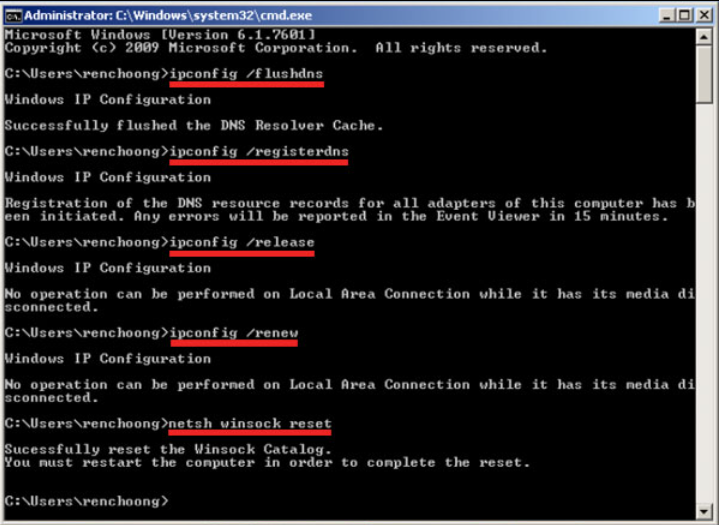
Step-by-Step: Flush DNS Cache in Windows
Follow these simple steps:
- Open Command Prompt
- Press Windows + R
- Type cmd
- Press Enter
- Run the DNS Flush Command
ipconfig /flushdns
- What Happens Next?
Once executed, you’ll see a confirmation message like:
Successfully flushed the DNS Resolver Cache
Chrome DNS Cache vs System DNS Cache (Important Difference)
| Feature | Chrome DNS Cache | System DNS Cache |
|---|---|---|
| Scope | Browser only | Entire system |
| Reset Method | Net Internals | Command Prompt |
| Purpose | Faster browsing | System-wide resolution |
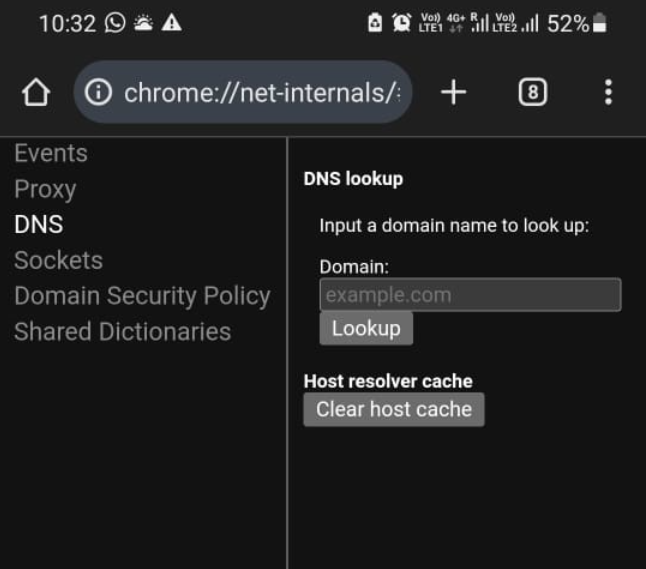
DNS Cache on Mobile Chrome: What You Need to Know
If you’re trying to fix DNS issues on mobile, there’s an important limitation:
Chrome mobile does NOT support chrome net internals or chrome net internals dns
This means you cannot directly access net internals dns tools like you would on a desktop.
Alternative Solution for Mobile Users
Since chrome net internals is unavailable on mobile devices, follow these simple steps:
- Clear browsing data (cache, cookies, and site data)
- Restart the Chrome browser
- Toggle airplane mode (to refresh network connection)
- Switch between Wi-Fi and mobile data
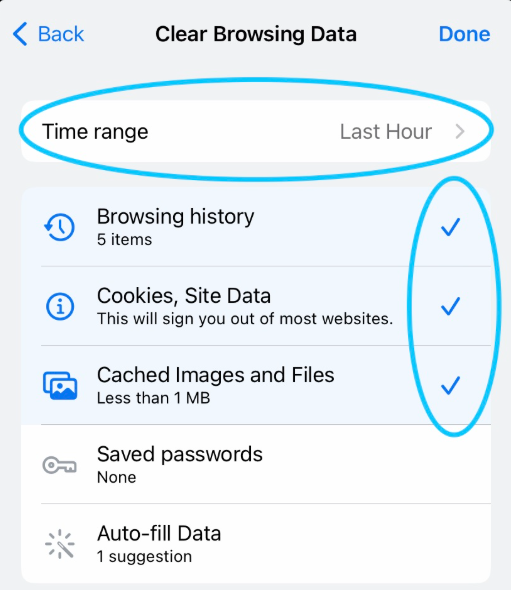
Why This Works
These steps force Chrome to:
- Remove cached DNS-related data indirectly
- Request fresh DNS records from the network
- Reset temporary connectivity glitches
While not as precise as chrome net internals dns, this method is effective for most users
Common DNS Errors Explained (And What They Mean)
Understanding DNS errors helps you diagnose issues faster and apply the right fix.
DNS_PROBE_FINISHED_NXDOMAIN
Meaning: Domain not found
This error occurs when your browser cannot locate the domain’s IP address.
Often caused by outdated entries in chrome net internals dns or incorrect DNS configuration.
ERR_NAME_NOT_RESOLVED
Meaning: DNS resolution failed
This indicates that the DNS lookup process failed completely.
Clearing cache via chrome net internals or flushing system DNS usually fixes it.
ERR_CONNECTION_TIMED_OUT
Meaning: Server not responding
This happens when your browser connects to an incorrect or unreachable IP—often due to stale DNS cache.
Quick Fix Insight
In most cases, simply clearing:
- chrome net internals dns (browser level)
- System DNS cache (OS level)
…will resolve these errors instantly.
Why DNS Issues Are Increasing in Modern IT Environments
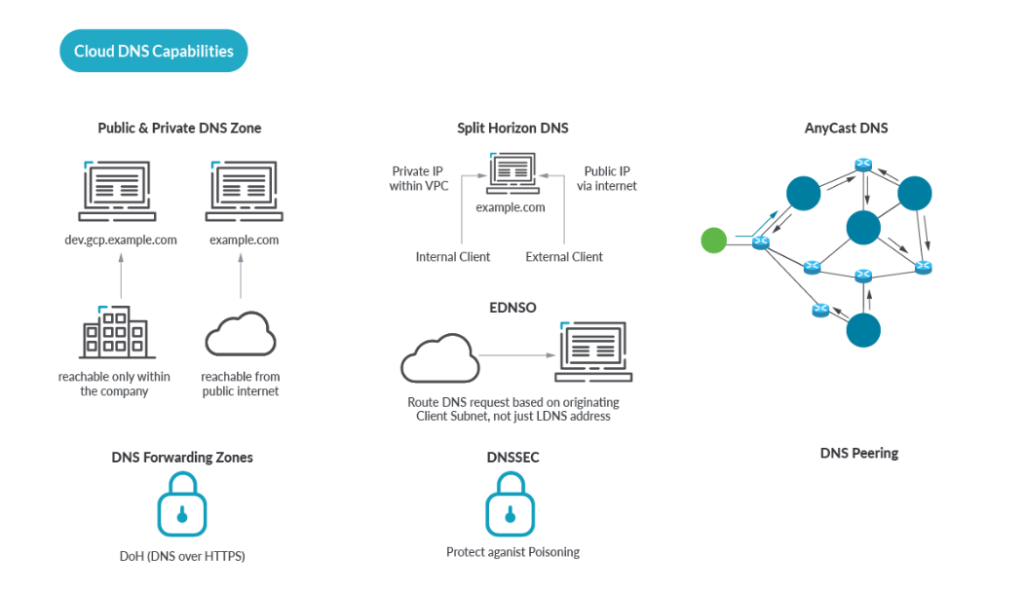
DNS problems are becoming more common—and it’s not just a coincidence.
Today’s digital infrastructure is far more complex than before.
Key Reasons Behind Increasing DNS Issues
Modern environments rely heavily on:
- Cloud infrastructure (AWS, Azure, GCP)
- Multi-region deployments
- CDN (Content Delivery Networks)
- Edge computing architectures
Each layer introduces additional DNS dependencies.
What This Means for Users
- More DNS lookups per request
- Higher chances of cache inconsistencies
- Increased propagation delays
- Greater impact of outdated DNS records
Even a small mismatch in net internals dns can break website access.
Best Practices to Avoid DNS Issues (Expert Recommendations)
After working with enterprise environments for years, one thing is clear:
Prevention is always better than troubleshooting.
Follow these proven best practices:
✔ Use Reliable DNS Providers
Choose trusted DNS services like Google DNS or Cloudflare for faster and more accurate resolution.
✔ Avoid Frequent DNS Changes
Frequent updates increase the risk of cache mismatch across systems and browsers.
✔ Monitor DNS Propagation
Always allow time for DNS changes to fully propagate globally before testing.
✔ Configure CDN Properly
Incorrect CDN setup can lead to conflicting DNS responses across regions.
✔ Maintain Stable Infrastructure
Ensure your hosting, servers, and networking stack are optimized and consistent.
Performance Tip for Global Businesses
If your business targets international users—especially in regions like the Middle East—your infrastructure plays a critical role.
Using a reliable VPS server in UAE can:
- Improve website speed
- Reduce latency for regional users
- Ensure faster DNS resolution
- Provide stable connectivity
A well-optimized VPS environment reduces dependency on inconsistent DNS paths and improves overall performance.
Frequently Asked Questions (FAQs)
1. Is clearing the DNS cache safe?
Yes, clearing DNS cache is completely safe.
When you clear cache using chrome net internals dns, it only removes temporary domain-to-IP mappings stored in your browser. It does not impact your system, files, or security in any way.
2. How often should I clear the DNS cache?
You should only clear DNS cache when you encounter issues such as:
- Websites not loading
- Incorrect redirects
- DNS-related errors
There is no need to regularly clear cache unless troubleshooting is required. Tools like chrome net internals are designed for on-demand fixes, not routine use.
3. Does clearing DNS cache delete browsing history?
No, it does not.
Clearing DNS cache via net internals dns:
- Does NOT delete browsing history
- Does NOT remove cookies or saved passwords
- Does NOT log you out of websites
It strictly clears DNS resolution data.
4. Why does DNS cache become outdated?
DNS cache becomes outdated due to changes in website infrastructure, such as:
- Server migrations
- Hosting provider changes
- DNS record updates
- CDN reconfigurations
In such cases, your browser may still rely on old data stored in chrome net internals dns, leading to access issues.
5. What is the fastest way to fix DNS errors?
The most effective and fastest method is:
- Clear DNS cache using chrome net internals dns
- Flush socket pools (via Chrome settings)
- Clear system DNS cache (ipconfig /flushdns)
This combined approach ensures that both browser-level and system-level DNS issues are resolved completely.
6. Can DNS issues affect cloud storage or GPU servers?
Yes, absolutely.
DNS issues can prevent your browser or applications from correctly locating servers, which can block access to:
- Cloud storage platforms
- GPU servers
- SaaS applications
That’s why businesses rely on robust infrastructure solutions like 10PB (cloud storage) and Inhosted.ai (GPU cloud) to ensure:
- High availability
- Reliable DNS resolution
- Minimal downtime
- Stable connectivity
Conclusion
Clearing DNS cache in Google Chrome is one of the simplest yet most powerful troubleshooting techniques available today.
Using tools like chrome net internals and chrome net internals dns, you can instantly resolve common browsing issues such as:
- Website not loading
- DNS errors
- Incorrect redirects
More importantly, understanding how DNS works—and how caching impacts your browsing—gives you a long-term advantage in diagnosing technical issues quickly and efficiently.

How to Solve Memory Access Violation Error in Tally ERP 9 / 7.2
August 20, 2025